Configure Java
Press the Windows button on the screen or on your keyboard and type Java. A list of proposed programs will appear, among which Configure Java option as shown in Figure 5.
 |
Figure 5: Configure Java in search options
Started this program and go to the « Security » tab (fig. 6).
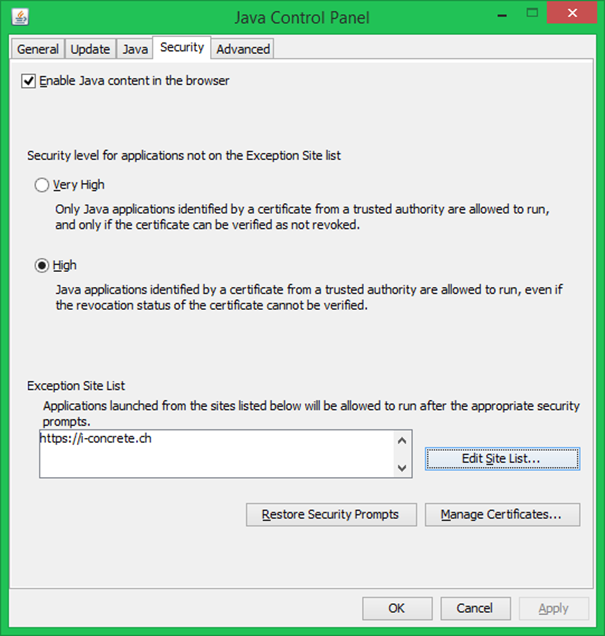 |
Figure 6: Java control panel, « Security » tab with https://i-concrete.ch already added to the Exception Site List
You need to set security level on « High », as « Very High » does not allow applets to run. What we will do now it to click on the Edit site list… button then on the Add button to add the website https://i-concrete.ch to the list of sites authorized to run potentially less secure applets (fig. 7). Do not forget the s, or it will not work.
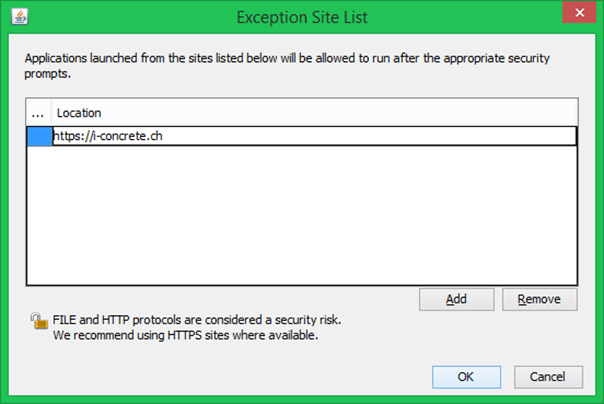 |
Figure 7: Add the i-concrete website to the list of sites allowed to run applets on your computer
Once this is done, press OK to finish. You can now freely run applets from the i-concrete web site. Well, you will still get a message asking if you really want to run it, which you can confirm!
 |
Figure 8: Confirmation dialog before running an applet
When first using the
 and
and
 buttons to launch an iconc calculation from iMesh, a message is displayed saying that the opening of a popup window has been prevented. Just click on the message, usually at the top left of the browser, and allow to open new i-concrete windows in popups.
Do not worry, the applets of the i-concrete website are completely innocuous, as they were written following the basic philosophy of Java applets, which makes no use of locally stored files or resources. This is why they are perfectly secure for you and authorizing i-concrete applets to run on your computer presents no security risk to you.
What comes next?
It is clear that the situation is not going to improve, and it is likely that Internet Explorer mode will disappear from Edge (not before 2029 seemingly). In the meantime, the solution proposed in these pages is functional.